
3.5 mm jack
3.5 mm jack
A slim round plug with metal rings. Connect to a compatible headphone socket. If your device has no headphone socket, you need an audio adapter that matches its port.
A free guide from Atmosure
An illustrated, 11-page guide to electromagnetic fields, common questions and practical listening habits.
No signup is needed for the headphone instructions or Q&A below. Privacy policy
ATMOSURE / LISTENING GUIDE
Setup, fit and sound help for your air tube headphones.

A slim round plug with metal rings. Connect to a compatible headphone socket. If your device has no headphone socket, you need an audio adapter that matches its port.
A flat, rounded plug. Connect to a USB-C port that supports compatible wired audio. The connector shape alone does not confirm audio, microphone or button support.
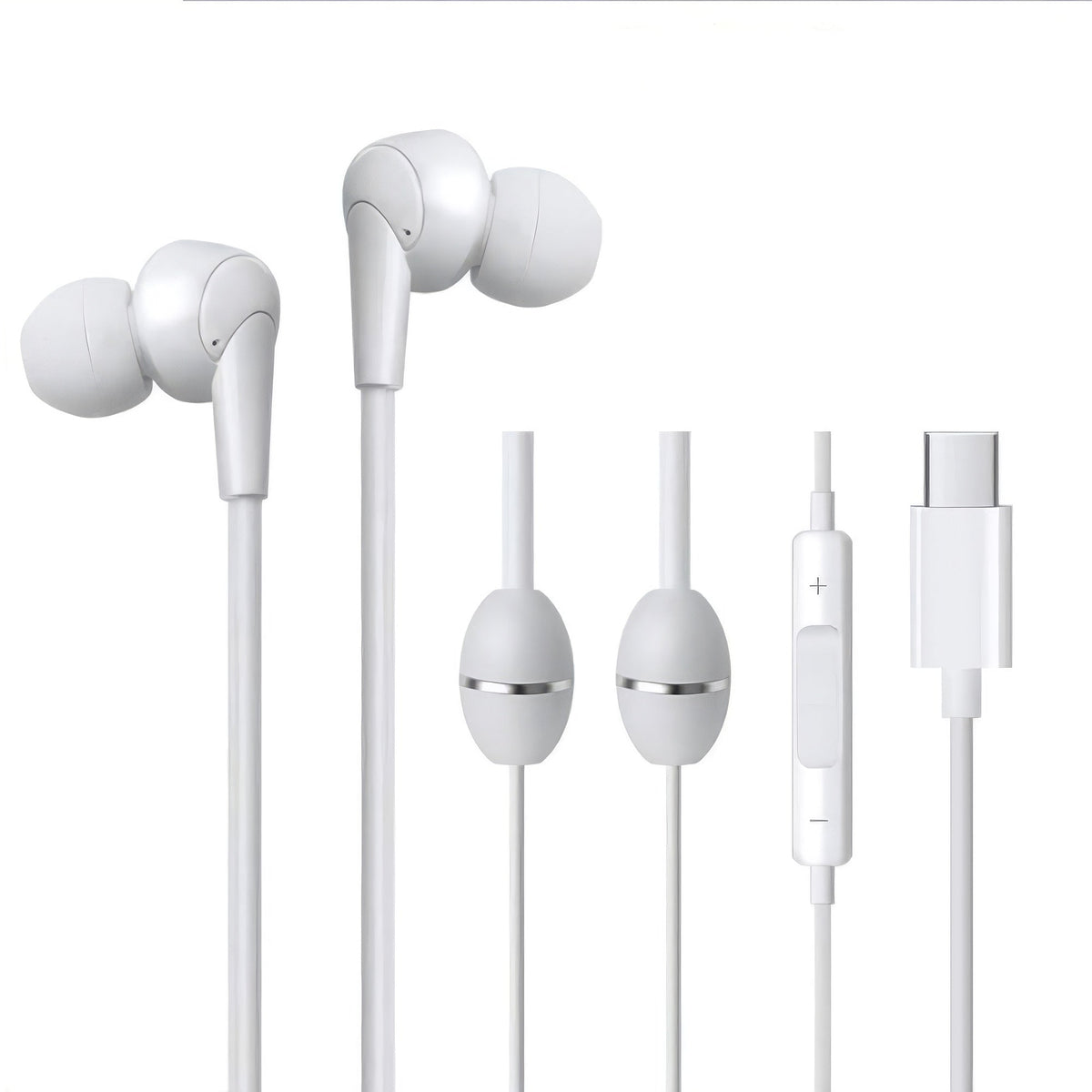
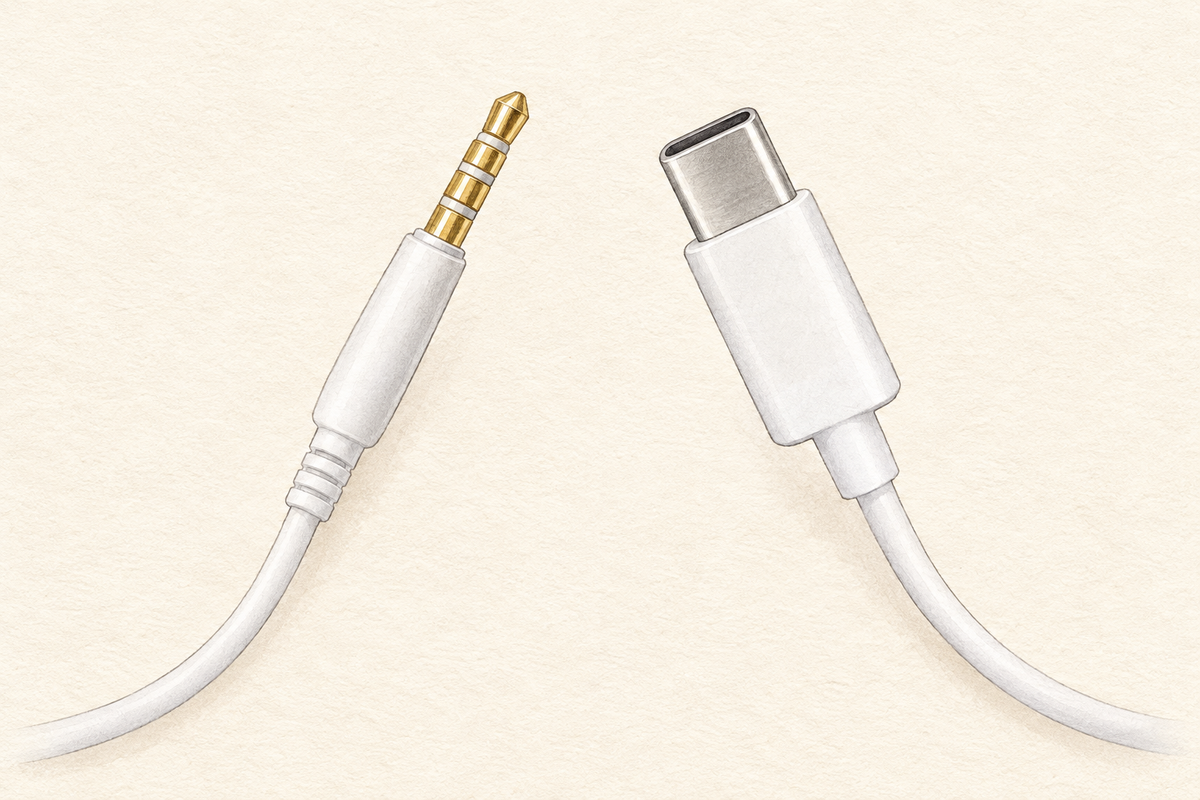
Match the plug to your device. A matching shape does not guarantee microphone or button support.
Older headphones can look different. Follow the connector you have. Button functions can vary by model, device and adapter.
For calls, the adapter must support a headset microphone as well as audio. A charging-only adapter is not enough. Do not force a plug into a different port.
AIR TUBE TECHNOLOGY
The speakers sit below your ears. Sound travels up the hollow air tubes to the earpieces.
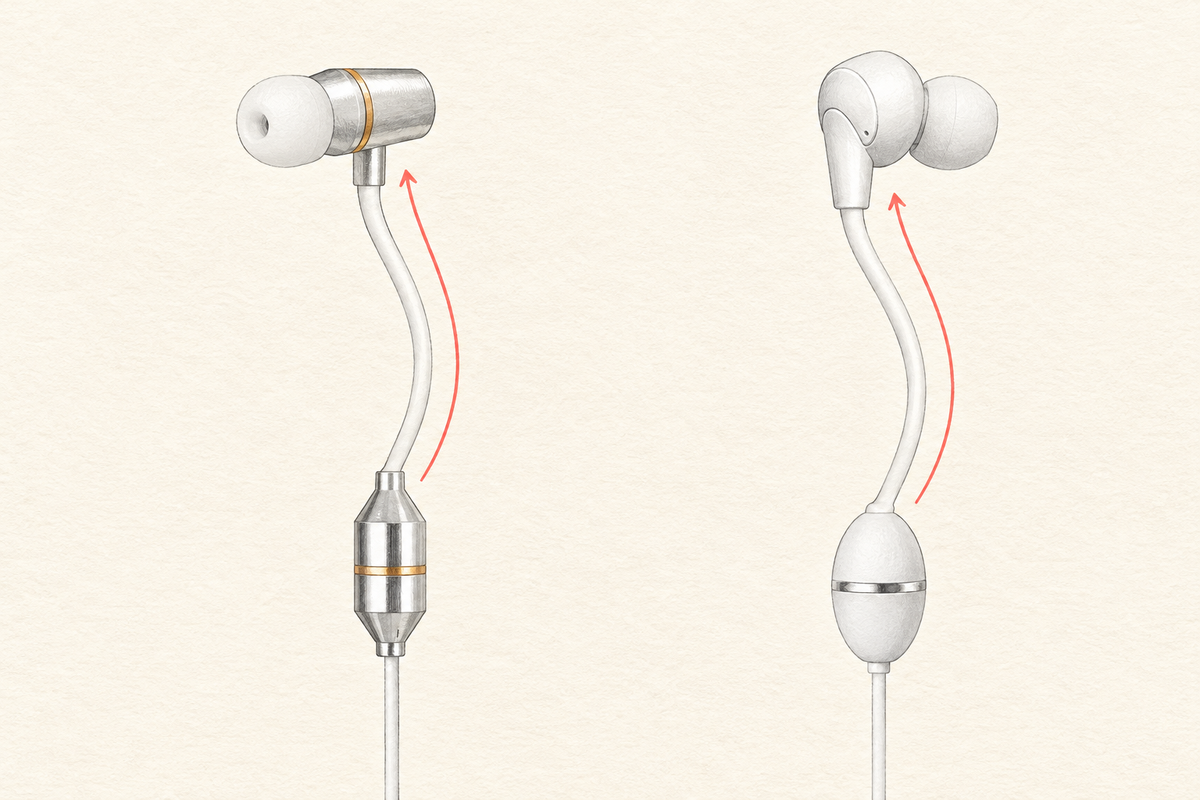
Keep the tubes open and free of sharp bends. The speaker housings and the inline controls are separate parts.
Pause your audio and lower the volume. Plug in the headphones fully, without forcing them. Check that a phone case is not stopping the plug from seating.
Try the tips supplied with your set. The tip should sit gently and stay in place without pressure. Before each use, check that it is fitted firmly to the earpiece.
Check the left and right markings if your pair has them. Place the earbuds gently. Try a small change in angle for a better seal. Never push them deeply or force a fit.
Leave slack between the headset and your device. If your set includes hooks, try them for support. If it includes a cable clip, fasten it to clothing to reduce pull on your ears.
Play a familiar spoken recording at a low volume. Then use a voice recorder or test call to check the microphone. Choose the headset as the input and output in your app when needed.
Let the air tubes curve gently. Check for sharp bends, trapped sections or damage. Do not pull a tube to remove the headphones; hold the earpiece.
Start at a low volume and raise it only as needed. Take listening breaks. Stop using the headphones if they hurt, a tip is loose or a part is damaged.
Try the quick checks in order. Test at a low volume after each step.
If the headphones stay silent on more than one compatible device, contact Atmosure.
Do not open the earpiece or speaker housing. If the same side stays silent, contact Atmosure with the tests you tried.
Do not push a tool into the tubes or turn the volume high to overcome a blockage.
Stop using a tip that is torn, stretched or will not stay attached. Contact Atmosure about the correct replacement part for your model.
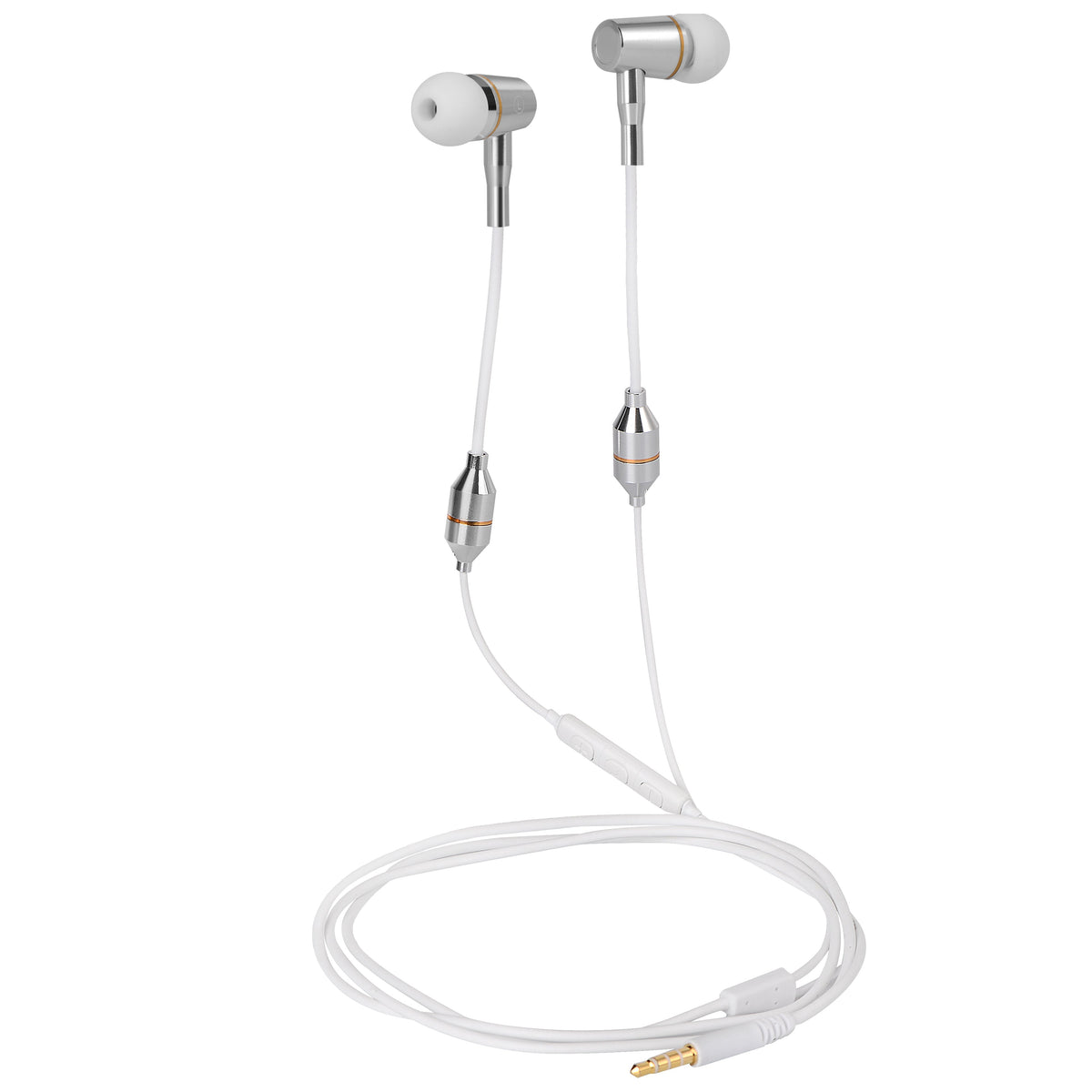
For the 3.5 mm model with the metal earpieces shown above:
Do not use a torn or stretched tip, or force a tip that does not fit. USB-C earpieces have a different shape; do not assume these tips are interchangeable.
Movement can travel along the cable and tubes as handling noise. If your set includes a clip, fasten it to clothing and leave a loose loop above it. Keep the speaker housings from knocking against a zip or jewelry.
Compare the sound while sitting still. If it continues without movement, try the connection checks under “No sound” and another compatible device.
If calls still fail, share your device and adapter model with Atmosure.
Controls depend on the headphone revision, device, app and adapter. If your controller has + and − buttons, test volume in a basic audio app. You can also adjust volume on the device.
Test the center button with a normal call or playback app. Do not assume multi-click actions are the same on all models. If sound works but buttons do not, check that your adapter supports headset controls.
You need a matching headphone socket or an audio adapter for your phone’s port. A Lightning port and a USB-C port use different adapters.
Check that the adapter supports your device and a 3.5 mm headset. For calls and buttons, confirm microphone and control support too. Do not use a charging-only adapter or force the plug.
A USB-C port can support different functions. Check the device maker’s wired-audio guidance and select the headset as the audio output if it appears.
Try another compatible USB-C device. Remove an extension, hub or adapter for the test when possible. A plug fitting does not prove that audio, microphone and controls are supported. Share the device model with Atmosure if you are unsure.
Stop playback first. Lower the volume in both your device and app. Check the device’s headphone-safety or volume-limit options; the names vary by device and software version.
If the first step is still uncomfortable, stop using that setup and contact Atmosure with your device and adapter details. Do not keep listening at an uncomfortable level.
Stop using the damaged part. Do not glue, tape, open or force a repair to an earpiece or speaker housing. Keep small loose parts away from children.
Contact Atmosure with your order number, connector type and a clear photo of the damage. This helps identify the right part and next step.
No matching topic. Try a shorter word, or contact Atmosure.
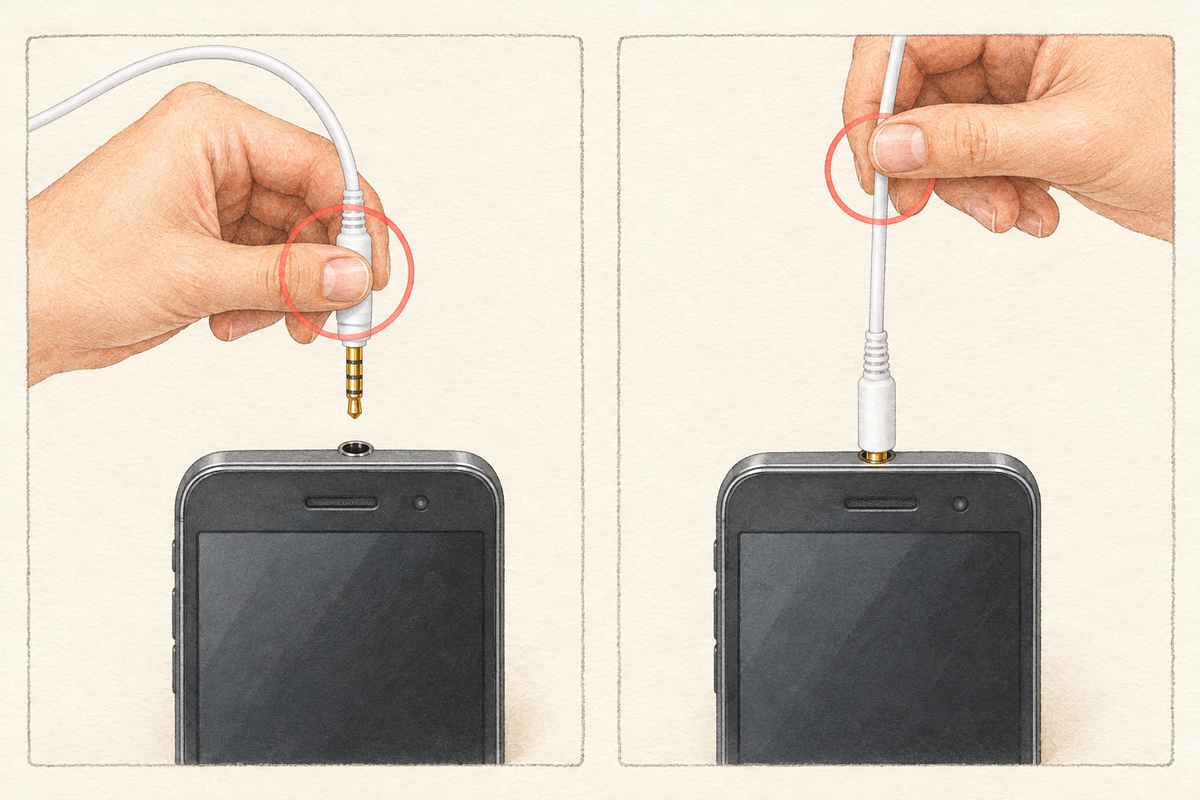
Hold the plug body when unplugging. Do not pull the cable. A 3.5 mm phone connection is shown; use the same handling rule for USB-C.
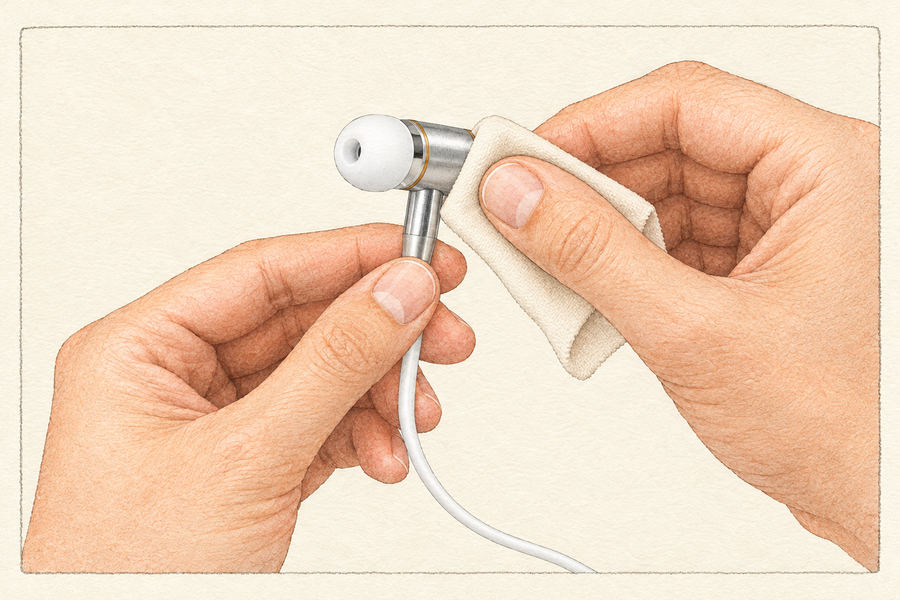
3.5 mm model shown
Unplug before cleaning. Wipe the outside with a soft, dry cloth. Keep liquid out of the earpieces, speaker housings, controller, tubes and plug.

3.5 mm and USB-C
Keep tubes free of sharp bends. Do not poke a pin or cleaning tool into them. If a blockage will not clear from a gentle exterior wipe, ask for model-specific help.
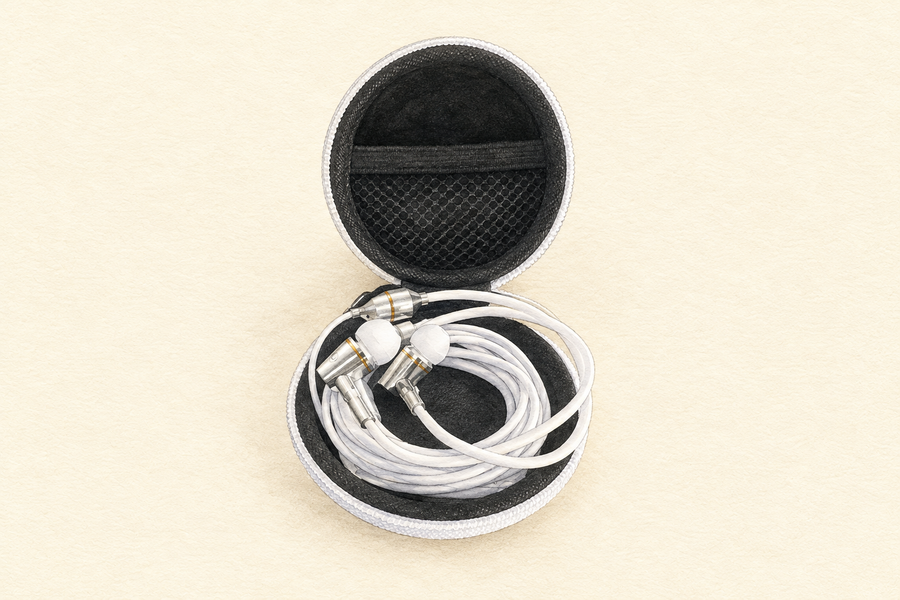
3.5 mm model shown
Hold the plug when unplugging. Coil the cable loosely and store the headphones in the included case. Tuck the tubes and cable inside before closing the zip. Keep the headphones dry and away from heat, sharp objects and heavy items.
Speakers sit below the earpieces. The final part of the sound path travels through hollow tubes to your ears. Keep those tubes open and gently curved so sound can pass through.
These are wired headphones. Connect the plug to a compatible device; there is no Bluetooth pairing step. Your device or adapter must support the headset’s audio connection.
Do not expect active noise cancellation. A comfortable tip seal can change how much outside sound you hear. Keep aware of your surroundings and avoid using headphones where they could distract you from a hazard.
Atmosure has made different headphone revisions. The current USB-C model has a different earpiece, speaker housing and controller from the 3.5 mm model and older USB-C sets. Match the connector and parts on your own pair. Send a photo if you need help identifying it.
The current 3.5 mm set has two spare ear tips in addition to the pair fitted to the earpieces. The USB-C set and older sets may differ. Check the contents listed for your purchased model and order.
If something seems missing, contact Atmosure with your order number and a photo of the contents.
Contact Atmosure with a photo of your earpiece and connector before choosing a replacement. Tips, hooks and other parts are not necessarily interchangeable between models. Availability and order support will be confirmed by the team.
Use the contact link below or contact the seller through your original order. Have your order number and purchase date ready. The terms for your purchase apply; this guide does not change them.
ATMOSURE / LISTENING GUIDE
Tell us which connector you have, your device model, any adapter you use, and what you have tried. For order help, have your order number ready.